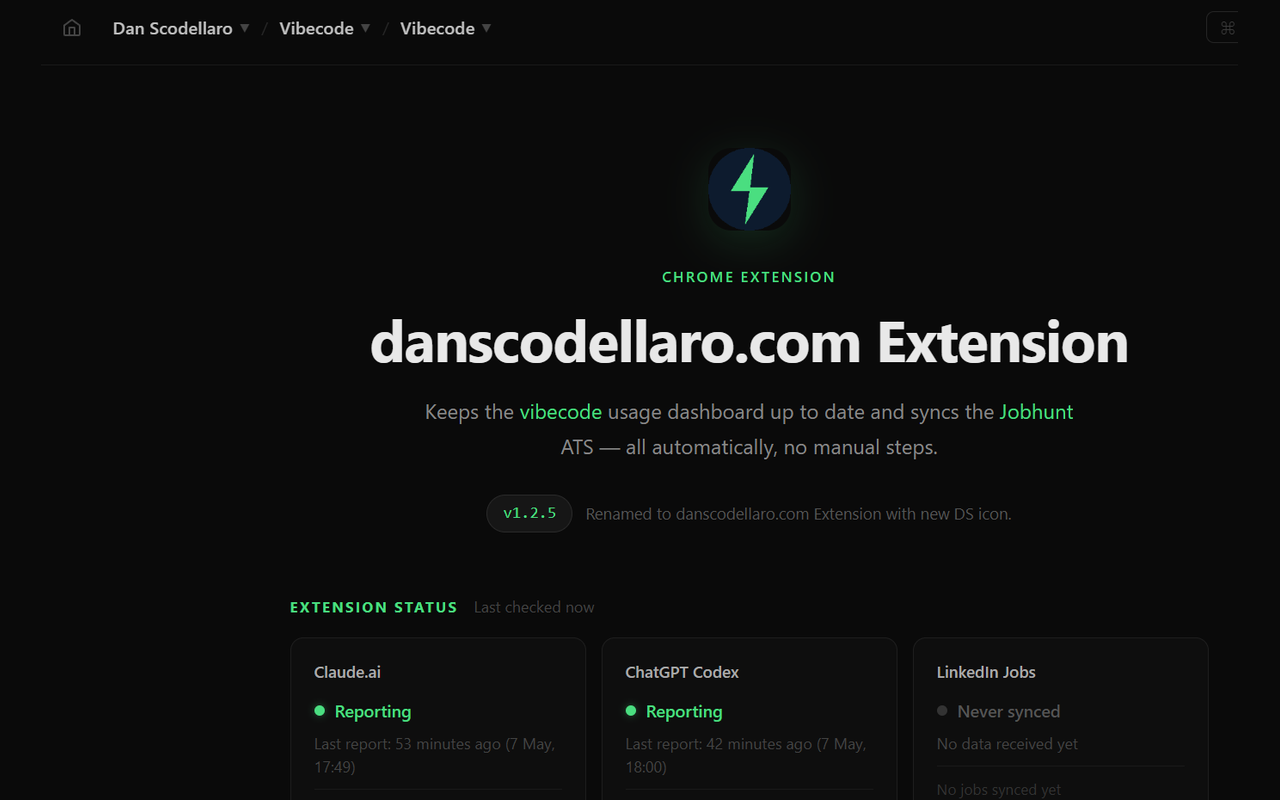
Keeps the vibecode usage dashboard up to date and syncs the
Jobhunt ATS — all automatically, no manual steps.
v1.0.0Checking for updates…
Extension Status
Checking…
Claude.ai
—
No data yet
ChatGPT Codex
—
No data yet
LinkedIn Jobs
—
No data yet
How it works
🔐
Uses your logged-in session
Your existing claude.ai and chatgpt.com cookies are already in Chrome.
The extension reads them — no passwords or API keys needed.
→
📡
Fetches usage data automatically
Every ~6 hours it polls the Claude.ai and ChatGPT usage APIs, and opens
a hidden background tab to the LinkedIn Jobs Tracker to scrape your full
application list — all without any manual action.
→
📊
Updates the dashboard
Usage data is posted to this server and stored — the vibecode widgets
stay fresh automatically. LinkedIn jobs are synced to the
Jobhunt ATS
as read-only 🔗 LinkedIn entries, keeping your application tracker complete.
Permissions
The extension requests the minimum permissions needed. Here's exactly what each one is for:
alarms
Schedule the 6-hour polling interval. Without this, Chrome would kill the service worker between polls.
notifications
Show a one-time Chrome notification when a new version of the extension is available for download.
storage
Persist a stable anthropic-device-id across polls (generated once, stored locally) and cache LinkedIn sync state between service worker restarts.
tabs
Opens a hidden background tab to the LinkedIn Jobs Tracker during each poll cycle, and closes it automatically once syncing is complete.
Host: claude.ai, chatgpt.com
Allows the background service worker to make credentialed fetch requests to the usage APIs on both sites (CORS is otherwise blocked for cross-origin extension requests).
Host: www.linkedin.com
Injects a content script on /jobs-tracker/ pages to read your job applications from the DOM and sync them to the Jobhunt ATS. No LinkedIn credentials are transmitted — only job metadata (title, company, location, URL, status).
Host: www.danscodellaro.com
Allows the extension to POST data to this server's ingest endpoints and check for version updates.
Installation
This extension is not published to the Chrome Web Store — it's a private tool loaded directly.
Takes about 90 seconds.
Download the extensionSign in as admin to download.
Unzip it — extract to a permanent folder on your machine (e.g. ~/extensions/ai-usage-relay/). Don't delete or move this folder after installing.
Open Chrome extensions — navigate to chrome://extensions
Enable Developer mode — toggle in the top-right corner of the extensions page
Load unpacked — click "Load unpacked" and select the unzipped folder
Verify — the danscodellaro.com Extension should appear with a DS icon. It will run its first poll within 1 minute.
Stay logged in to claude.ai, chatgpt.com, linkedin.com, and this site in the same Chrome profile. The extension uses your existing sessions.
Updating
Two options — pick one:
Option A — Fully automatic (recommended)
A one-time Windows registry change tells Chrome to force-install and silently auto-update
the extension, exactly like a Chrome Web Store extension. No further action ever needed.
Download the registry fileSign in as admin to download.
Right-click → Run as administrator and confirm the prompt
Restart Chrome — the extension installs automatically and updates itself from now on
Remove the old Load Unpacked version from chrome://extensions — the policy version has a different ID and they'll coexist otherwise
Chrome will show a "Managed by your organisation" label in the menu — this is cosmetic only and just means a policy is active.
Option B — Manual update
Download the new zip from this page (button above)
Replace the files in your existing extension folder with the new ones
Go to chrome://extensions and click the ↺ reload button
The extension checks this server's version on every poll and will show a Chrome notification when there's something new.
Publishing to the Chrome Web Store
Publishing as an unlisted CWS extension gives you silent auto-updates without
appearing in public search results. One-time setup, ~10 minutes. Chrome reviews typically
take 1–3 business days.
Download the extension zip from the button at the top of this page.
This is the same zip used for Load Unpacked — CWS accepts it directly.
Do not re-zip the CRX file — the CWS wants the raw source zip, not the
signed package. The download button already gives you the correct format.
Step 2 — Register as a developer
Go to chrome.google.com/webstore/devconsole and sign in with your Google account.
Pay the one-time $5 USD developer registration fee if you haven't already.
Step 3 — Create the listing
Click New item and upload the zip.
Fill in the Store listing tab:
Name: danscodellaro.com Extension
Short description (132 chars max): Relays Claude.ai and ChatGPT usage data to danscodellaro.com and syncs LinkedIn job applications to the Jobhunt ATS.
Category: Productivity
Language: English
Store icon: use store-icon-128.png from the assets section above.
Small promo tile: use promo-small-440x280.png.
Marquee promo tile: use promo-marquee-1400x560.png.
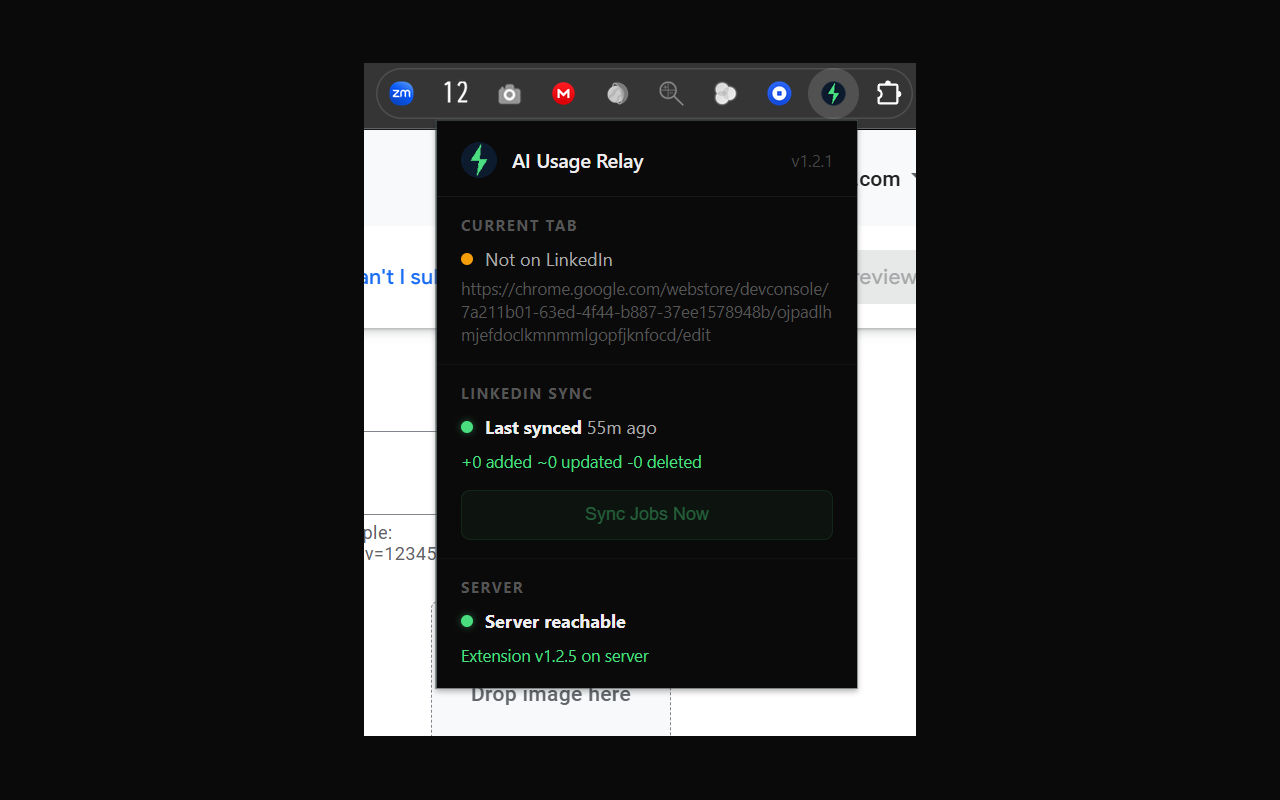
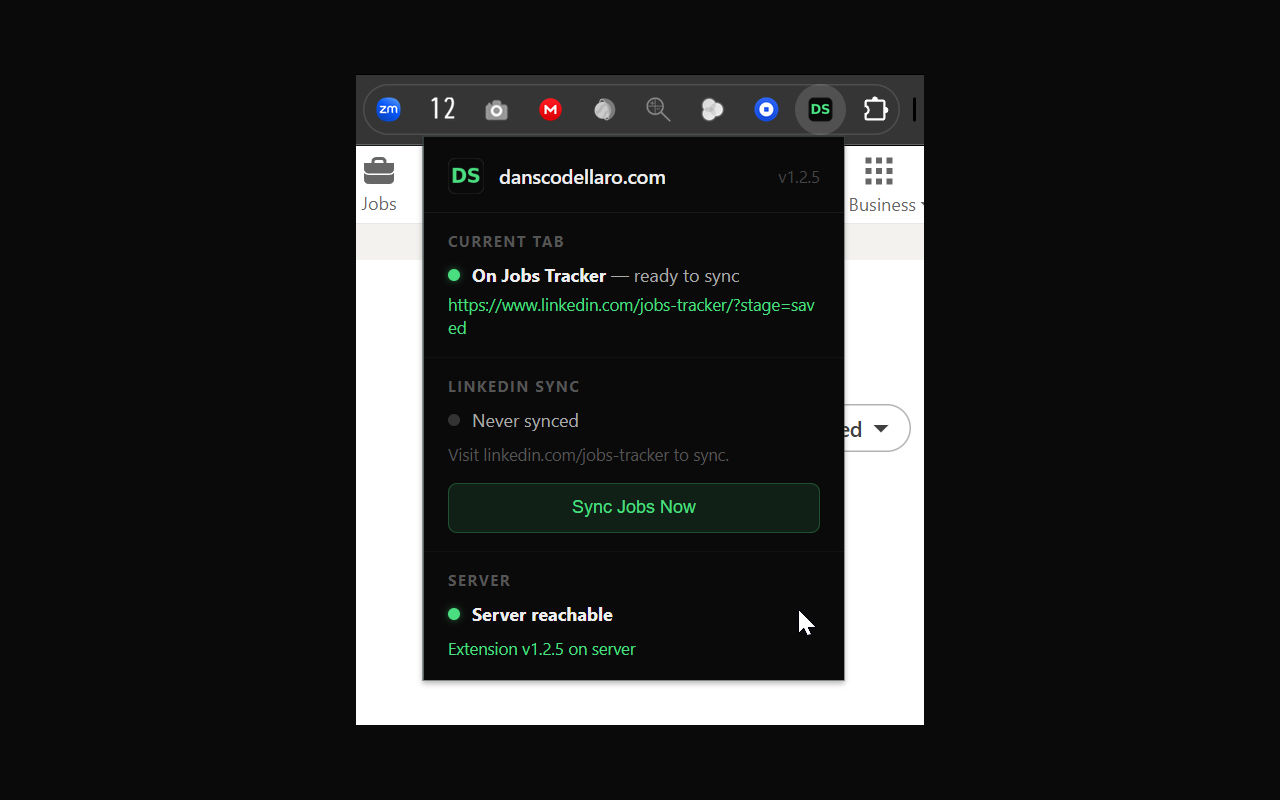
Screenshots: At least one 1280×800 or 640×400 PNG is required. A screenshot of the vibecode dashboard or this status panel works fine.
Under Privacy, complete the data disclosure form:
The extension collects: usage statistics (Claude, ChatGPT), job application data (LinkedIn).
Data is sent to a single server you own (danscodellaro.com) — mark it as not sold and not shared with third parties.
Provide a privacy policy URL — a simple page on your site confirming data stays on your own server is sufficient.
Under Distribution, set visibility to Unlisted — the extension won't appear in search but can be installed via direct link or the CWS install flow.
Step 4 — Submit and install
Click Submit for review. Review takes 1–3 business days.
Once approved, you'll receive an email. The extension's CWS URL will be chromewebstore.google.com/detail/<extension-id>.
Visit that URL in Chrome and click Add to Chrome to install the CWS-managed version.
Remove the Load Unpacked version from chrome://extensions — they have different IDs and will both run otherwise.
From this point on Chrome auto-updates the extension silently whenever a new version is published.
Publishing updates
Go back to the developer console, open the item, click Package → Upload new package.
Upload the new zip (version number in manifest must be higher than the current published version).
Click Submit for review. Minor updates typically review within a few hours; Chrome rolls out the update to installed copies within 24–48 hours.
The CWS assigns its own extension ID based on your Google account key — it will differ from the self-signed ID used for Load Unpacked testing. Update config.json → extension_id with the new CWS ID after the first publish so the registry policy file and update endpoints stay in sync.
Troubleshooting
The vibecode dashboard still shows stale data
Open the extensions page, click the service worker link for danscodellaro.com Extension to open DevTools, and check the console for [AI Relay] log lines. A 401 from chatgpt.com means the Authorization token isn't being captured — the fallback server-side poller will handle ChatGPT in that case (update credentials manually via the vibecode page).
Claude.ai returns a non-200 response
Make sure you're logged into claude.ai in this Chrome profile. The extension reads your existing session — it can't log in for you.
LinkedIn jobs aren't syncing
The extension opens a hidden background tab to linkedin.com/jobs-tracker/ during each poll. Make sure you're logged into LinkedIn in this Chrome profile. You can also trigger a manual sync via the extension popup (click the icon in the Chrome toolbar).
I was on "Load unpacked" — how do I switch to auto-update?
Remove the unpacked version from chrome://extensions, download the .crx from this page, and drag it onto chrome://extensions. Chrome will install it with a stable ID and auto-update from then on.